Home
Your day, your devices and your evenings.
- Today & Jarvis
- Smart Home
- Marquee
- Calendar
Open Swarm · self-managed · distributed
One platform for your home, your learning, your work and what you create. Jarvis and each application’s specialist work beside you, on your phone, your computers and the services you connect.
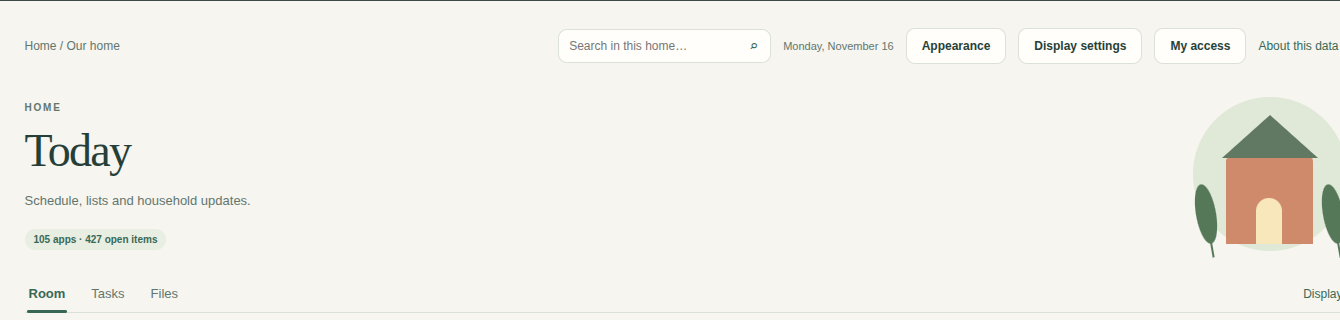
The screens on this page come from a working installation. Most were captured in the owner’s own workspace on November 16, 2026; personal details are hidden and example records are labelled.
Four parts of your day
One platform holds all four. Start in any of them; Jarvis and the applications carry the work between them.
Your day, your devices and your evenings.
Lessons, a tutor and practice that keep up.
Your career, your money and the systems you run.
Documents, images, video, 3D and CAD that stay editable.
01Work
Find the next role, understand your money and keep your systems healthy, with a specialist in each.
Work · Intelligent Career
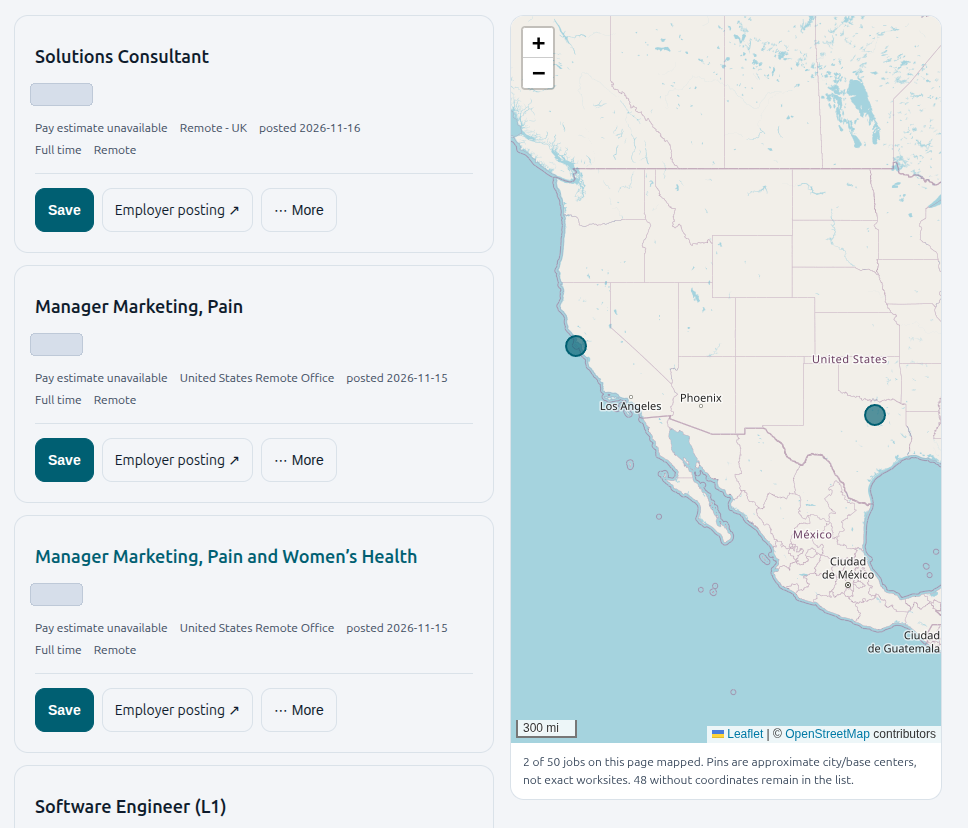
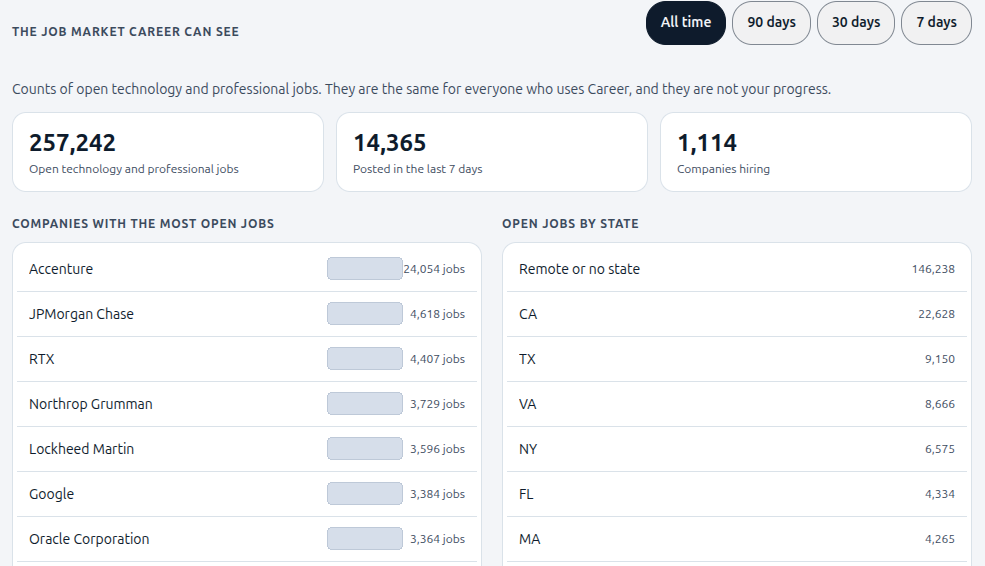
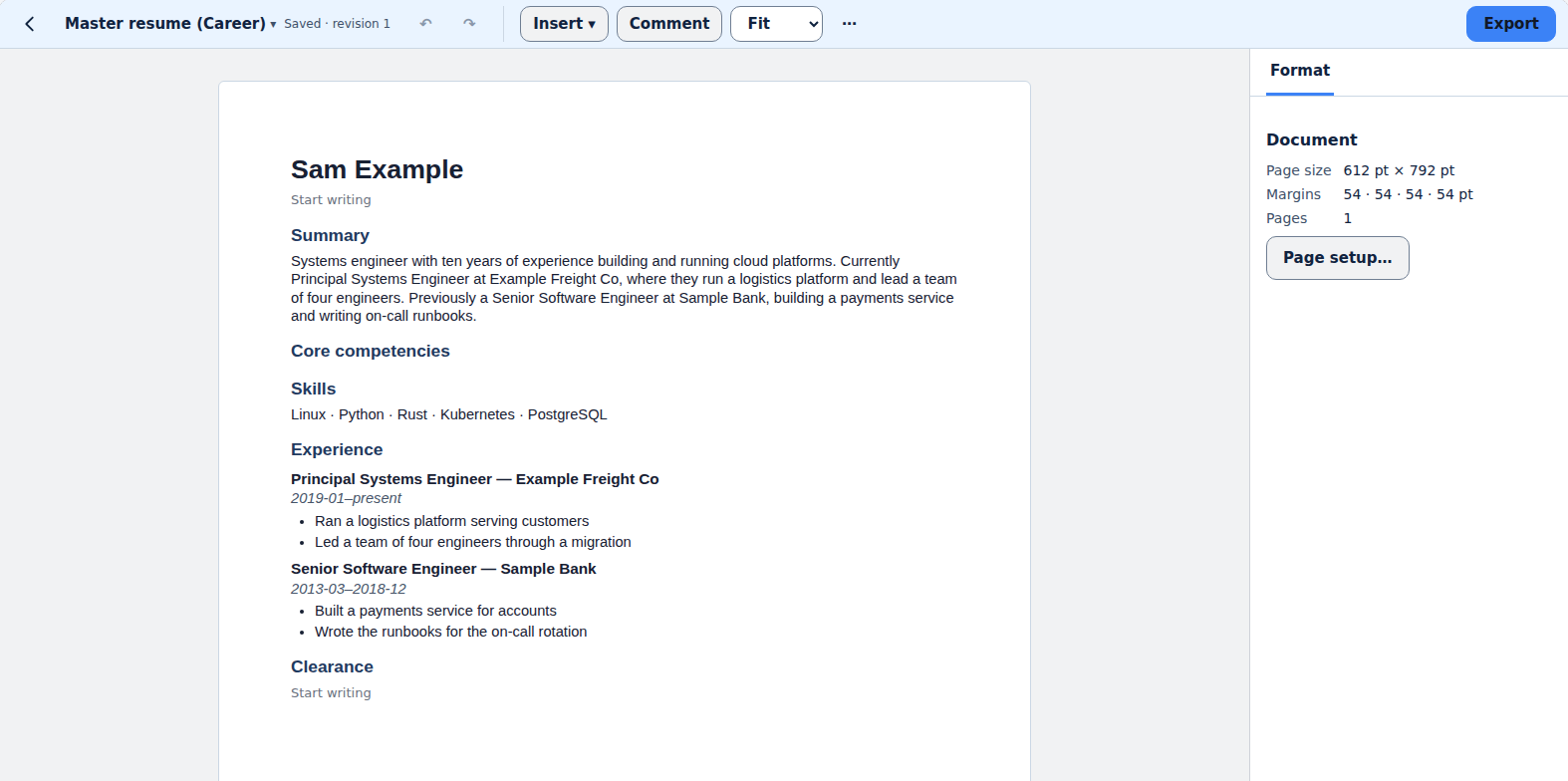
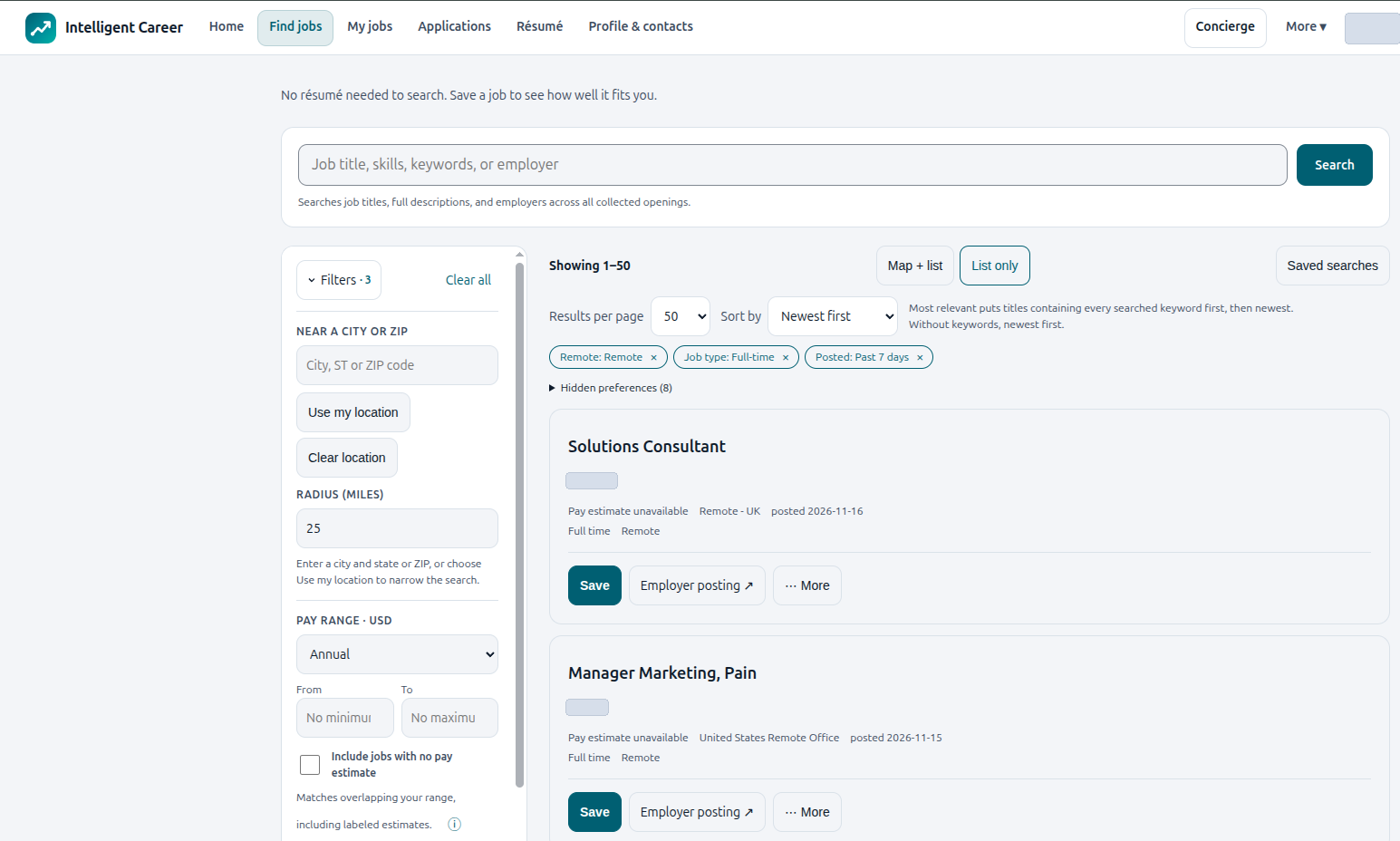
Search openings, keep the jobs you save, tailor a résumé for each and see which applications still wait for a reply. The Career concierge works from the same records.
Preparing an application is separate from sending it; supported submissions ask for your approval.
Explore Intelligent Career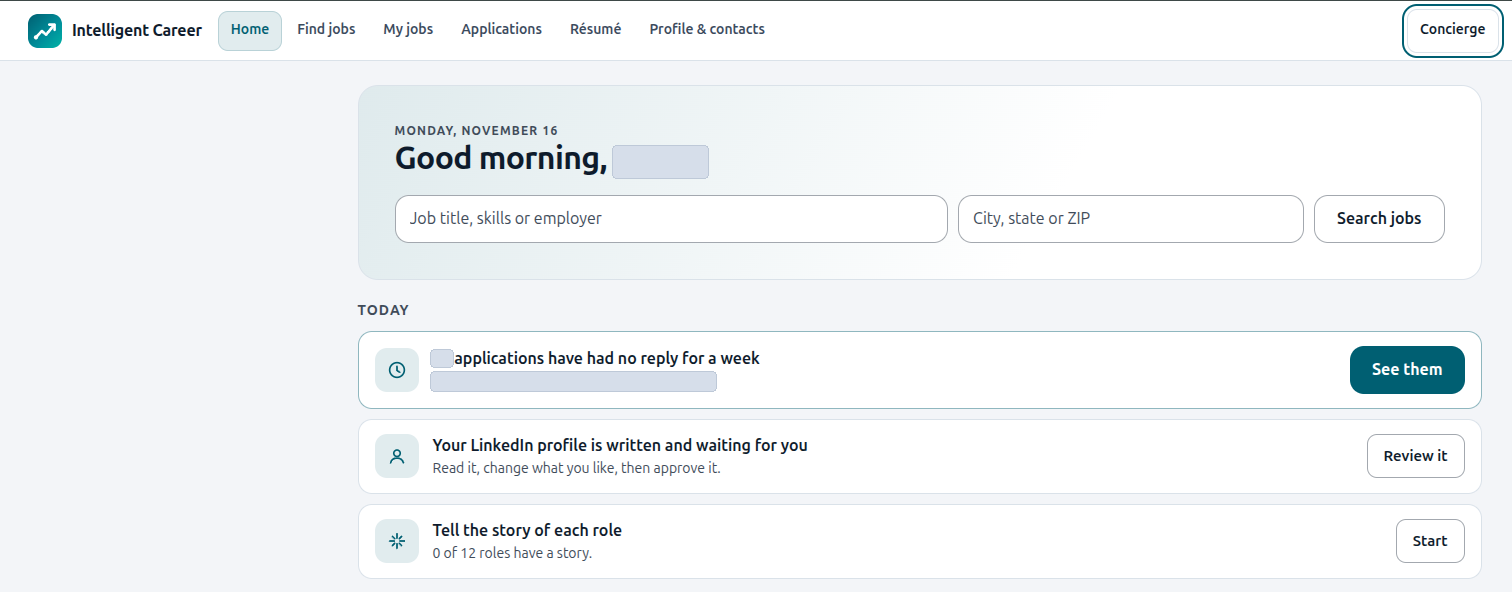
Work & home · Finance
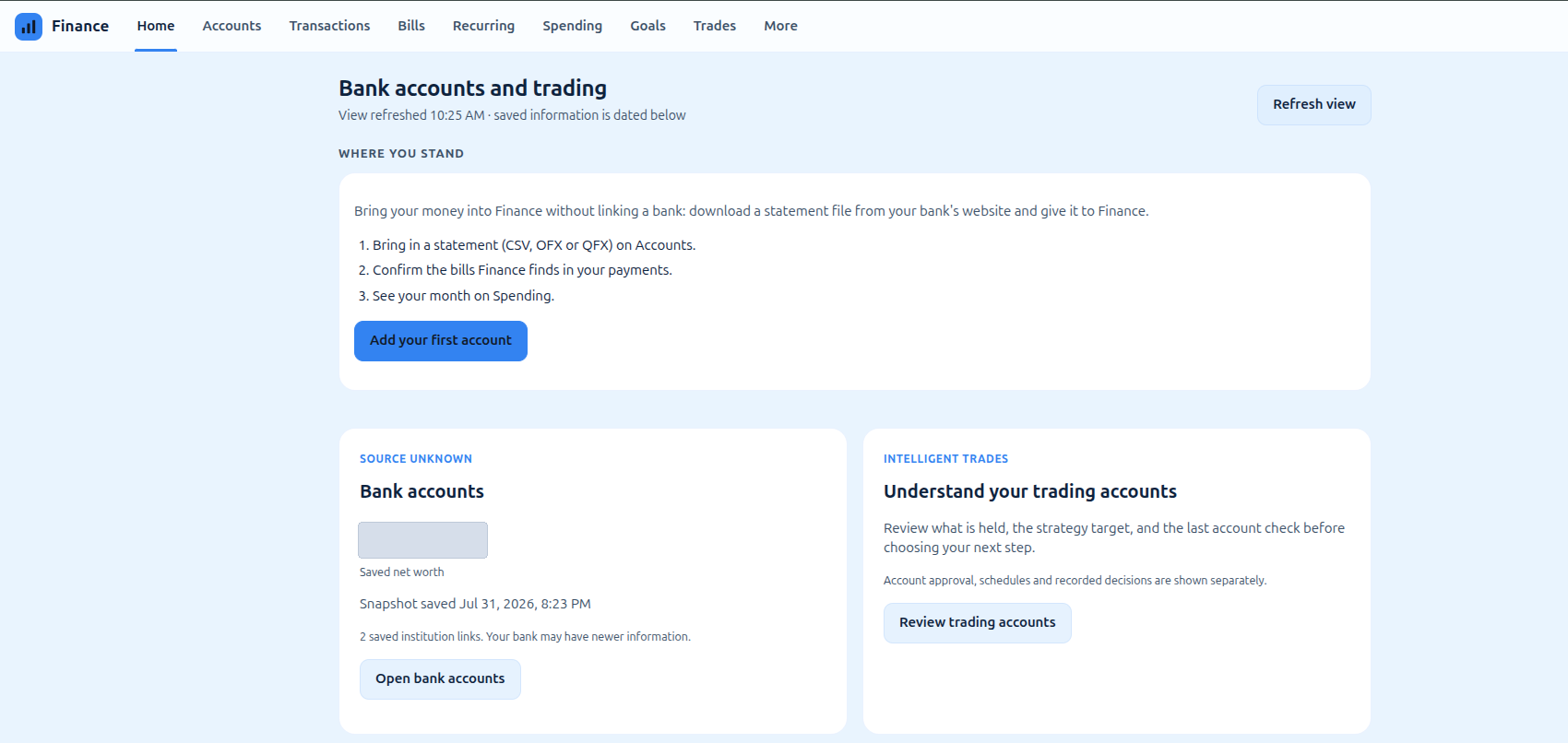
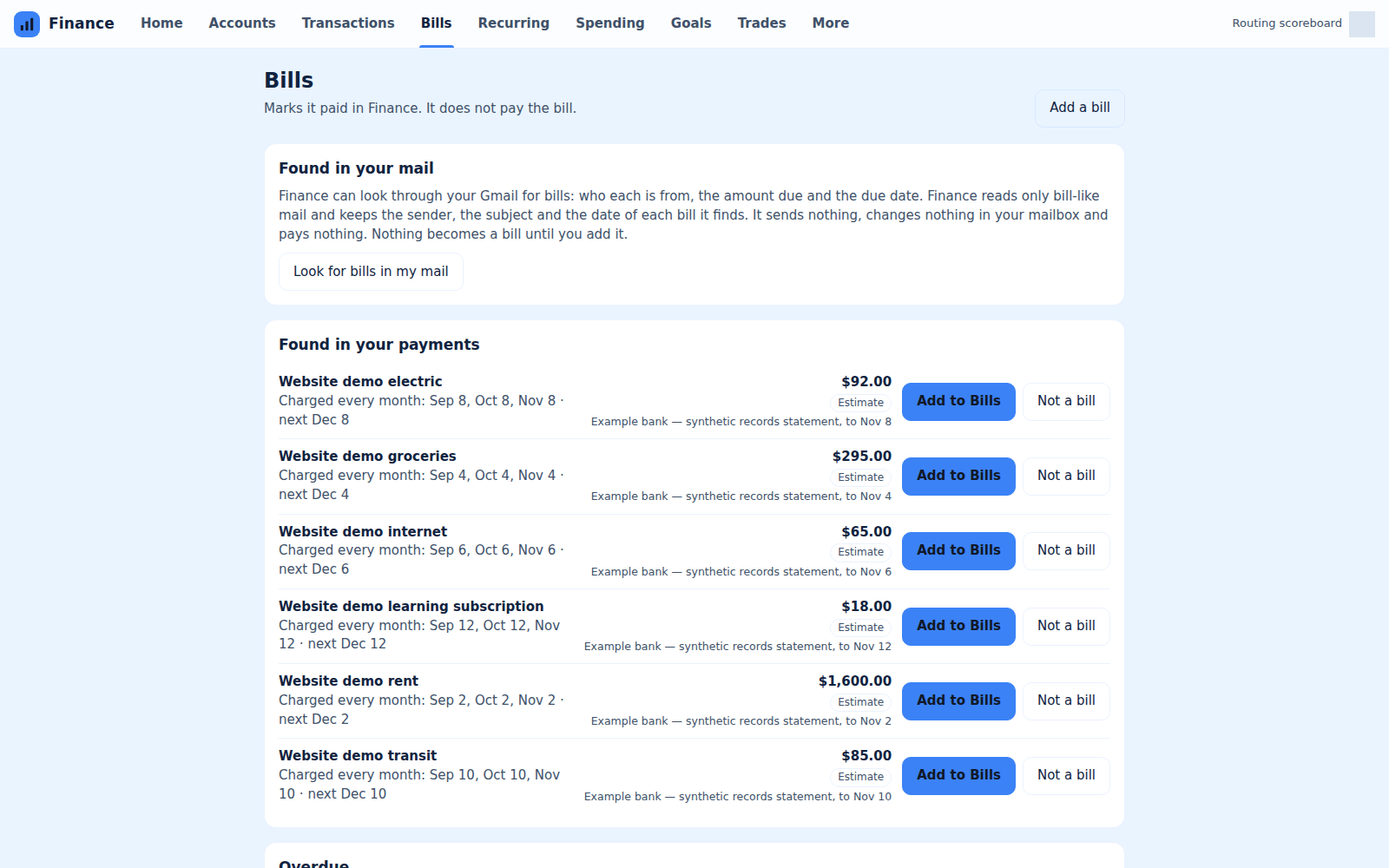
Bring in a statement (CSV, OFX or QFX) without linking a bank, confirm the bills Finance finds, review what repeats and plan your spending. The Finance analyst answers from the same records.
Work · Intelligent Trades
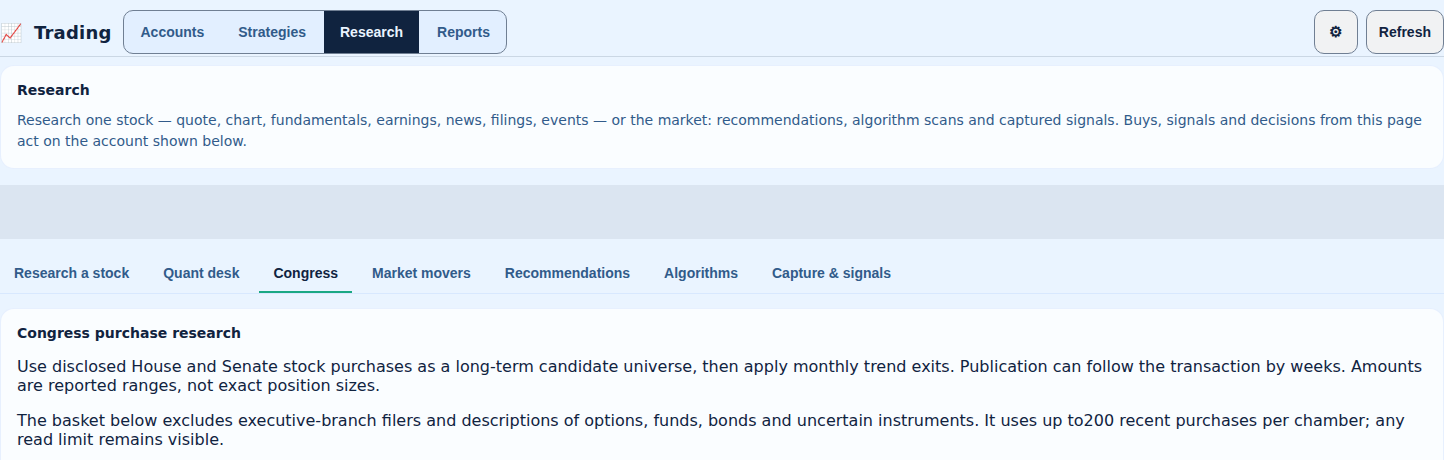
A separate workspace for market research, strategies, backtests and paper accounts, with recorded decisions.
Paper trading and backtests are simulations, not real-money results or promised returns.
Work · Intelligent Operations
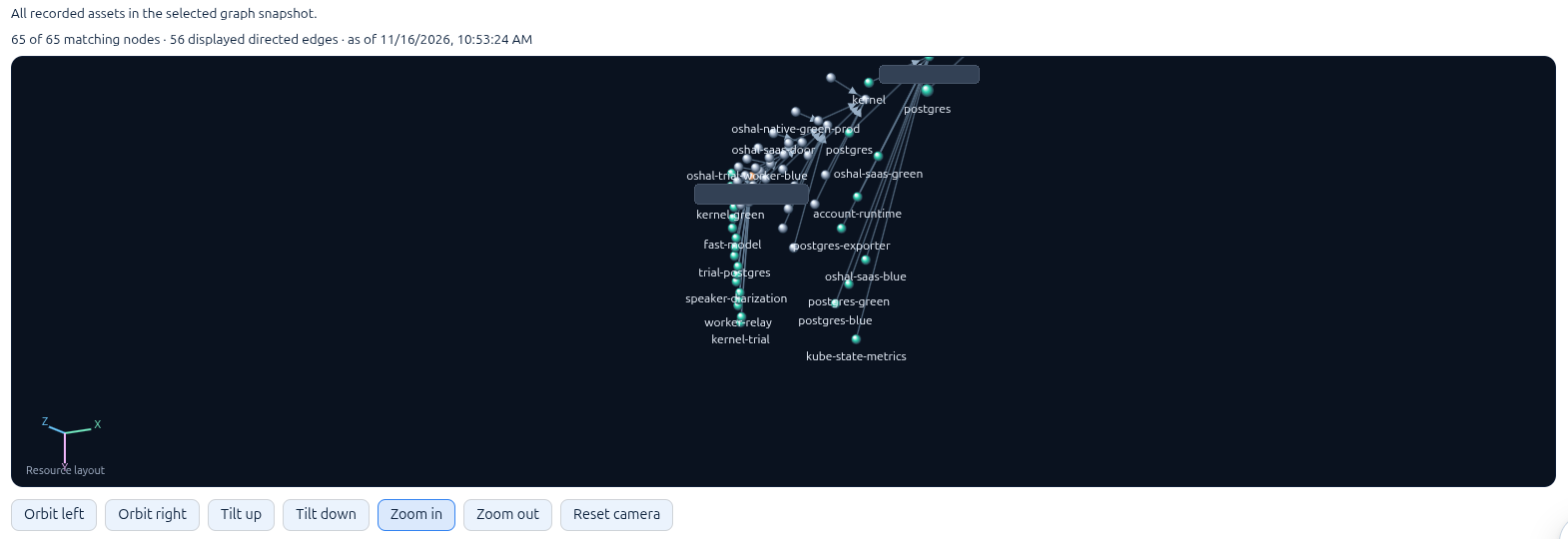
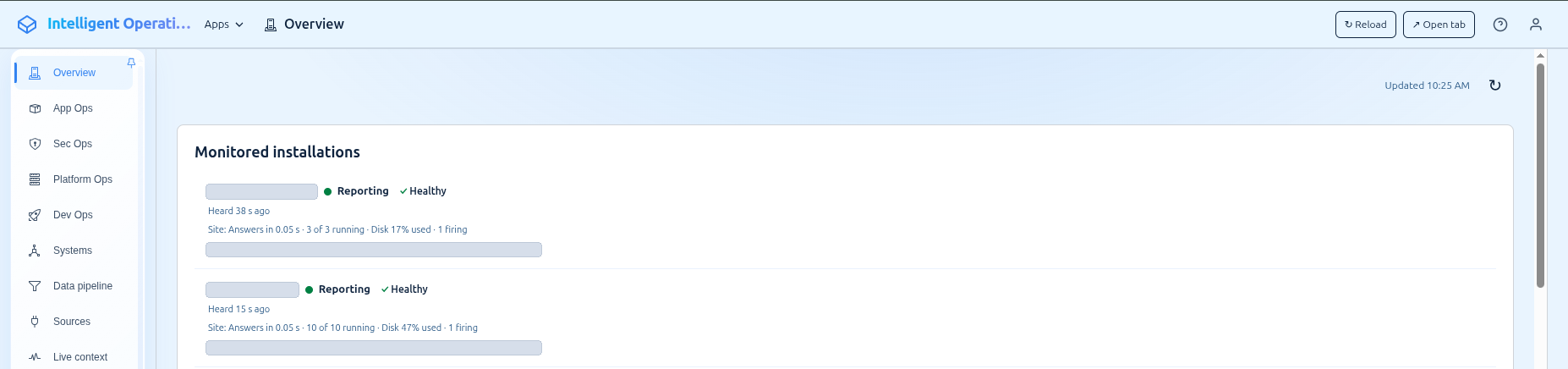
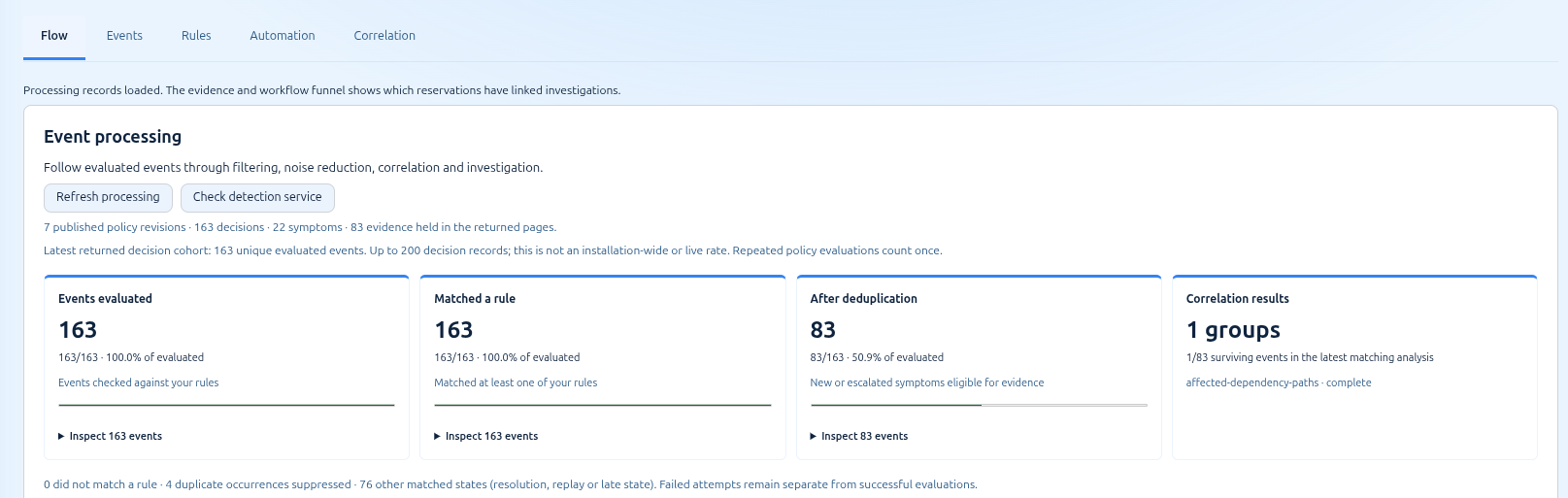
Installations report every minute, and one that goes quiet raises an alert of its own. Desks for App Ops, Sec Ops, Platform Ops and Dev Ops, a systems view of every check, runbooks and an incident workflow that keeps the evidence.
02Learn
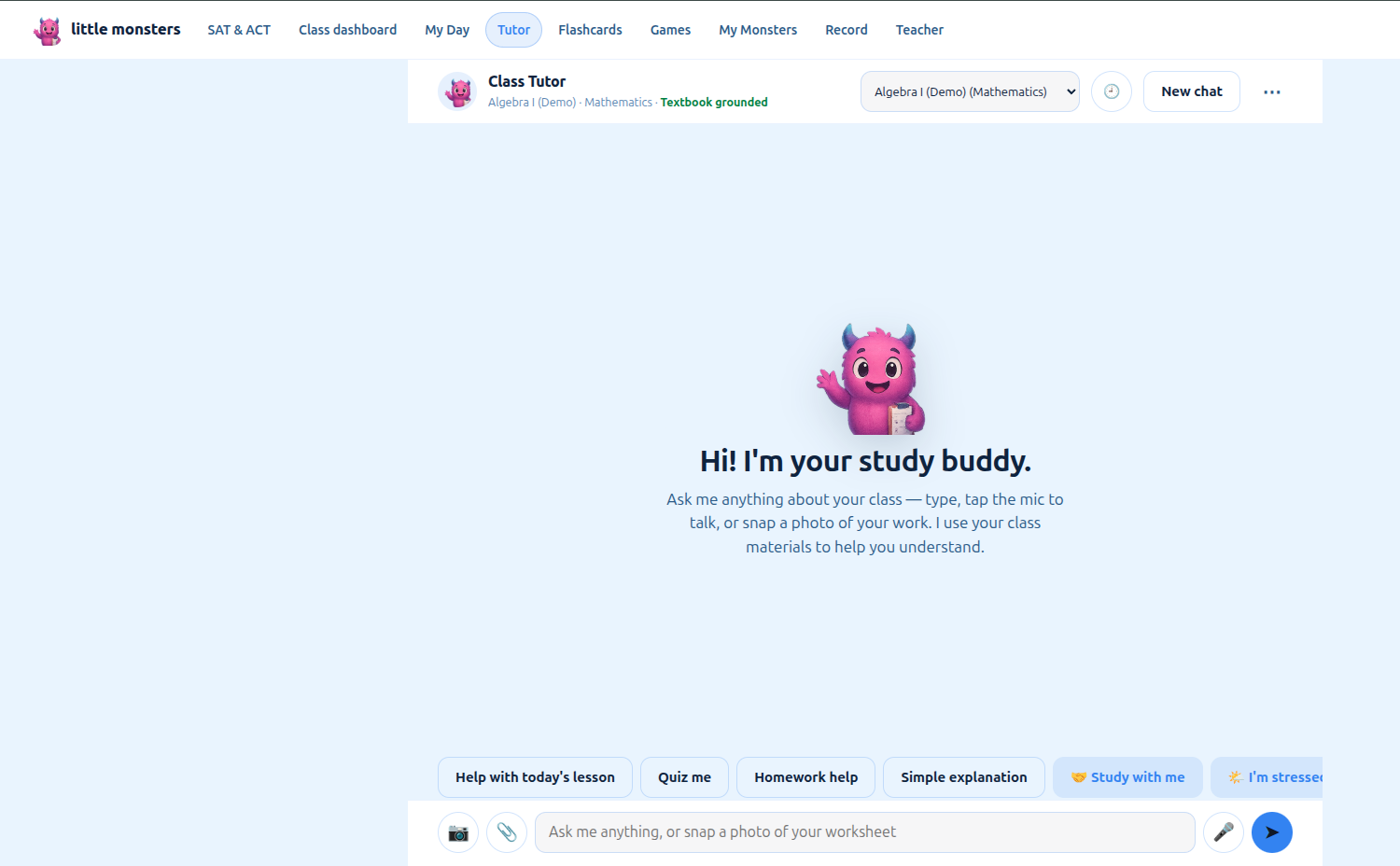
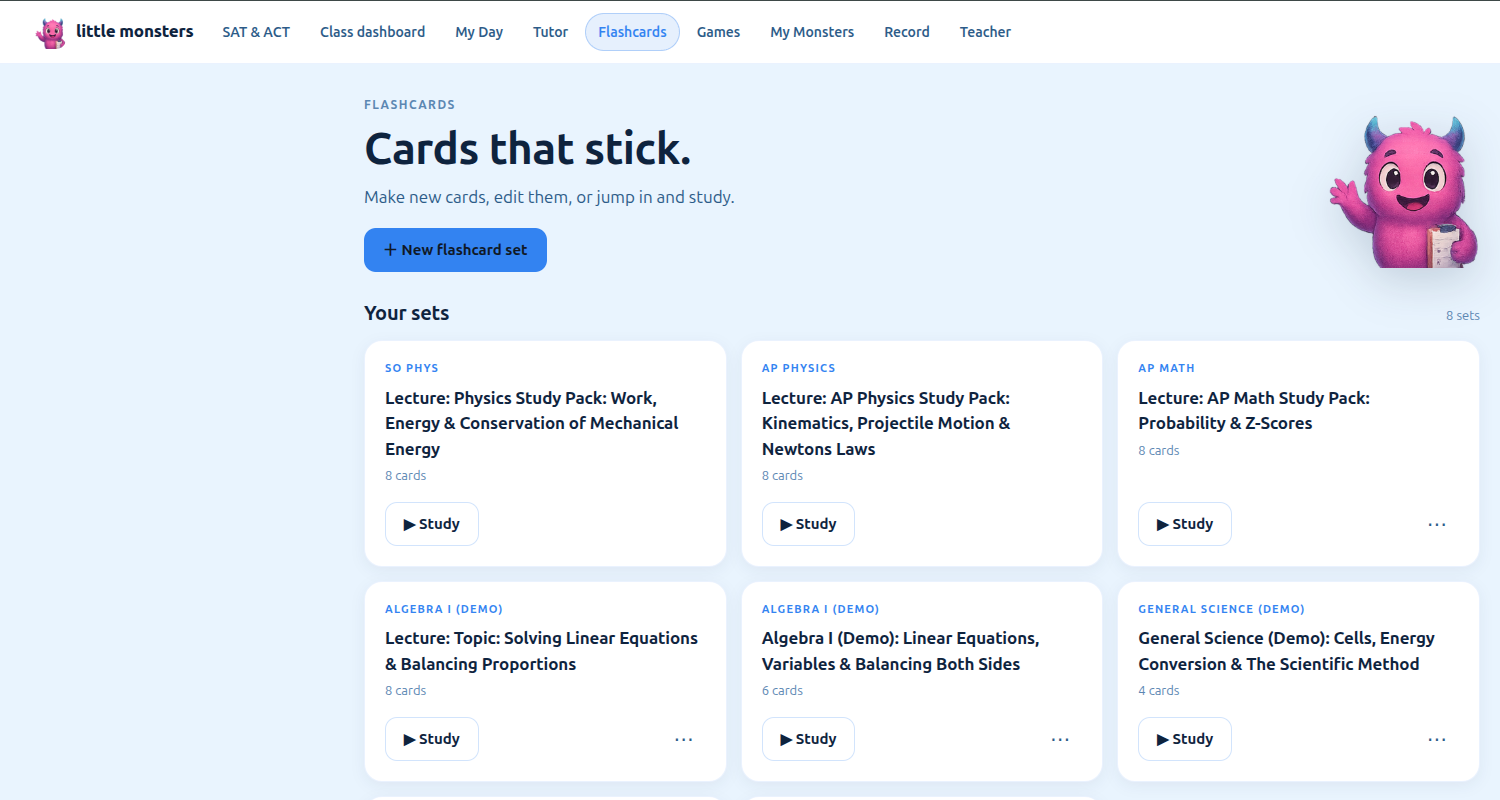
Little Monsters brings lessons, practice and a tutor together for students, and a classroom for the teachers who run it.
Learn · Little Monsters
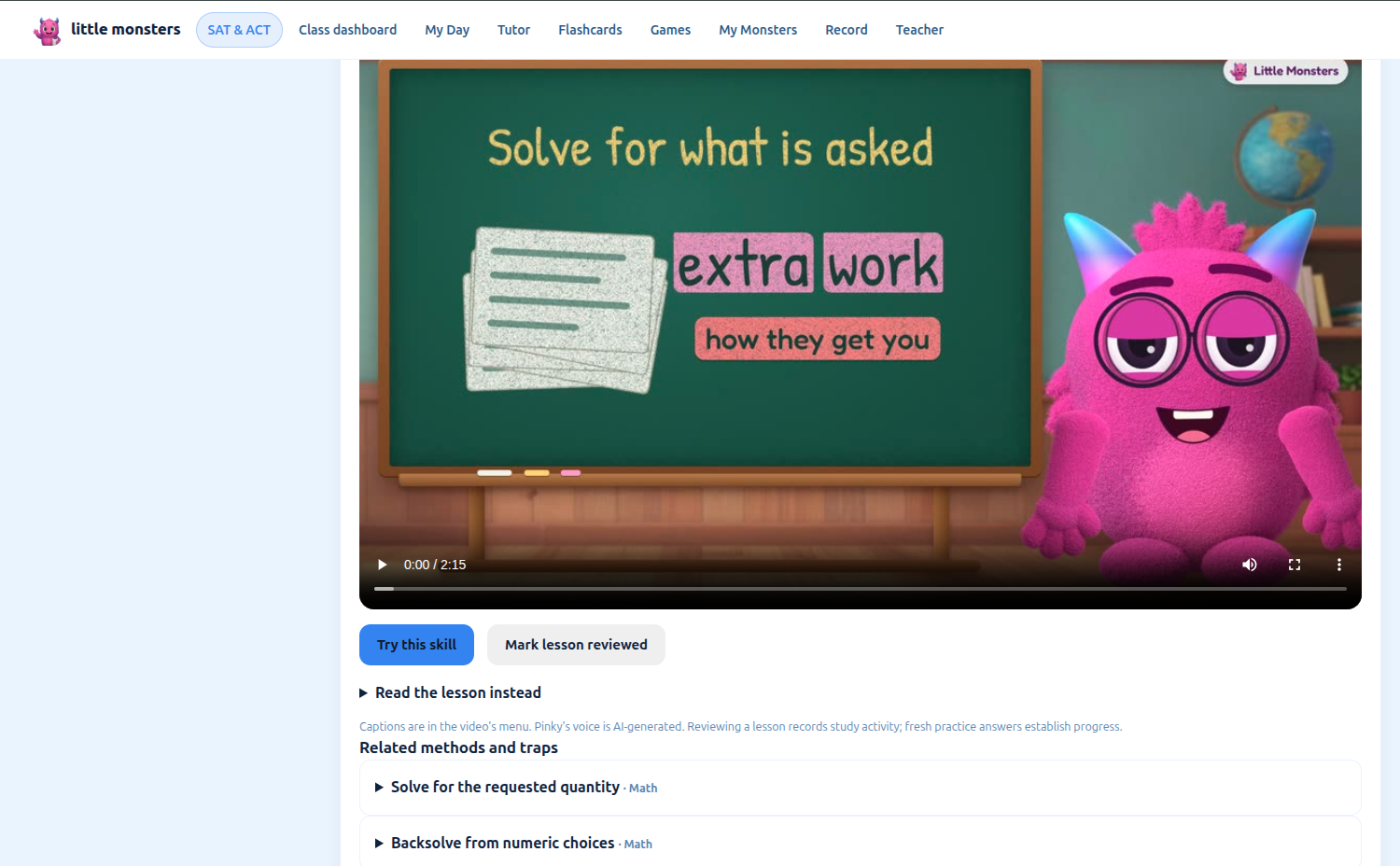
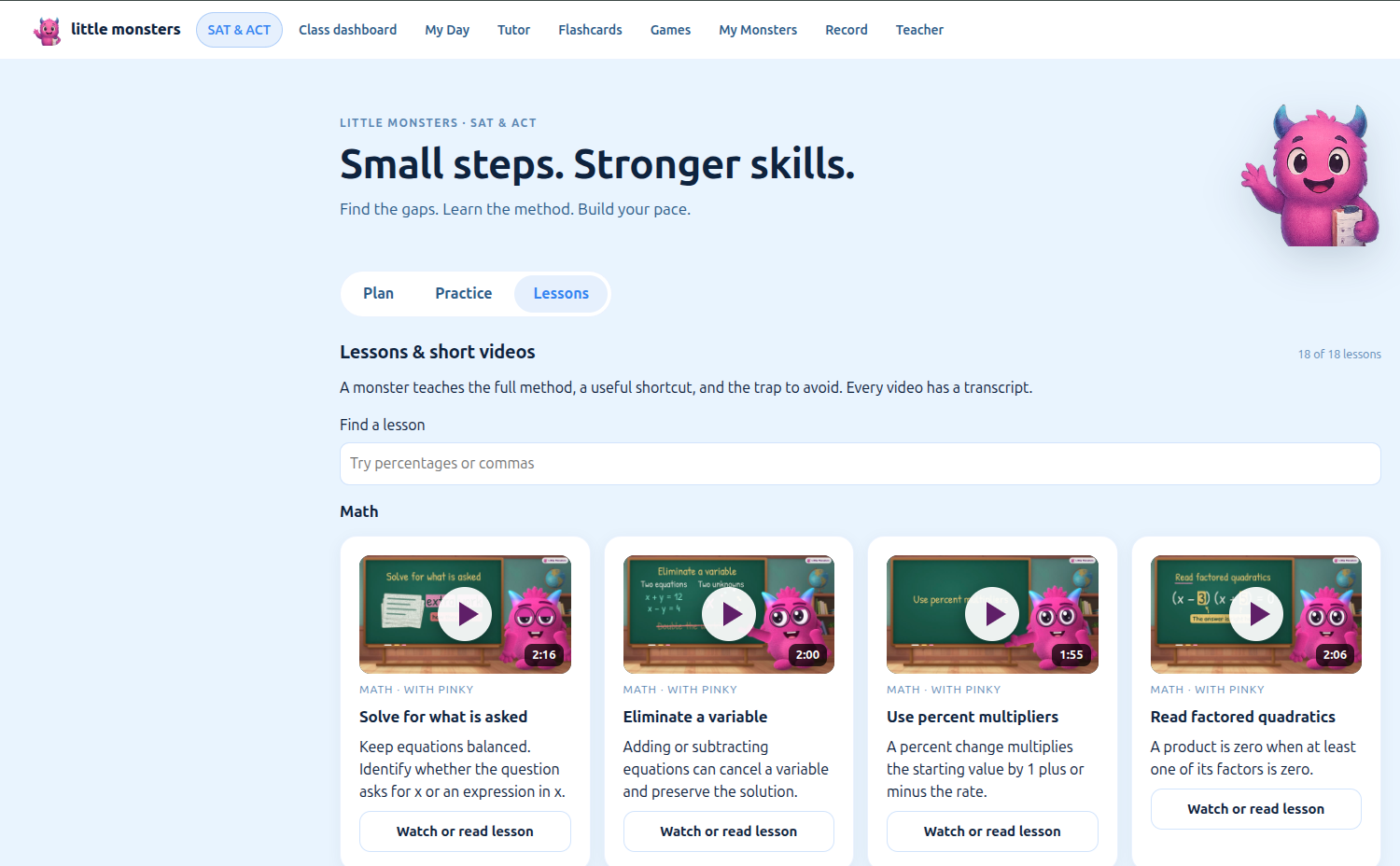
Short lessons taught by a monster, SAT and ACT practice, flashcards and games, and a tutor that works from the class materials. Teachers get a class dashboard with recent lectures ready to replay.
03Create
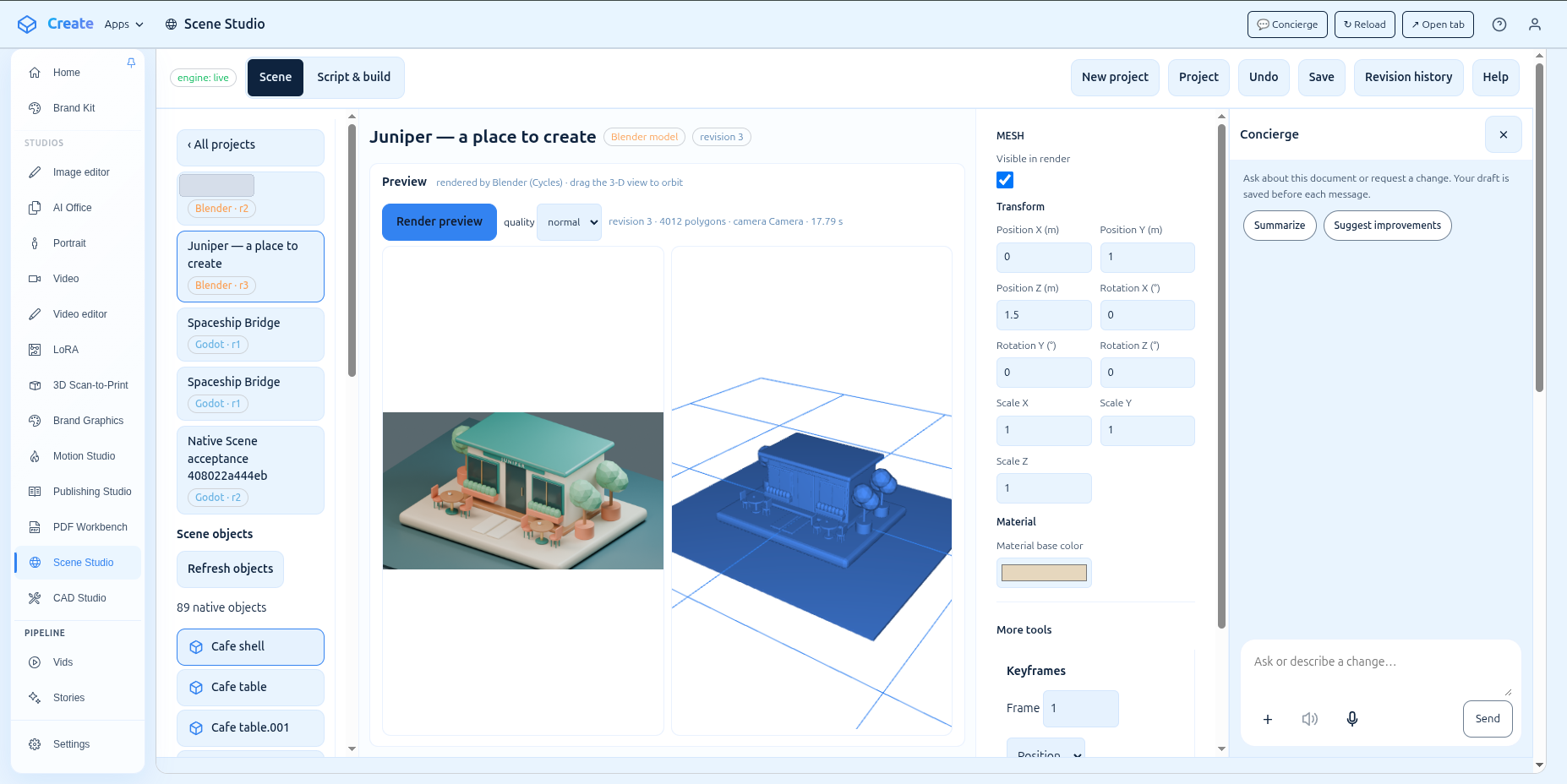
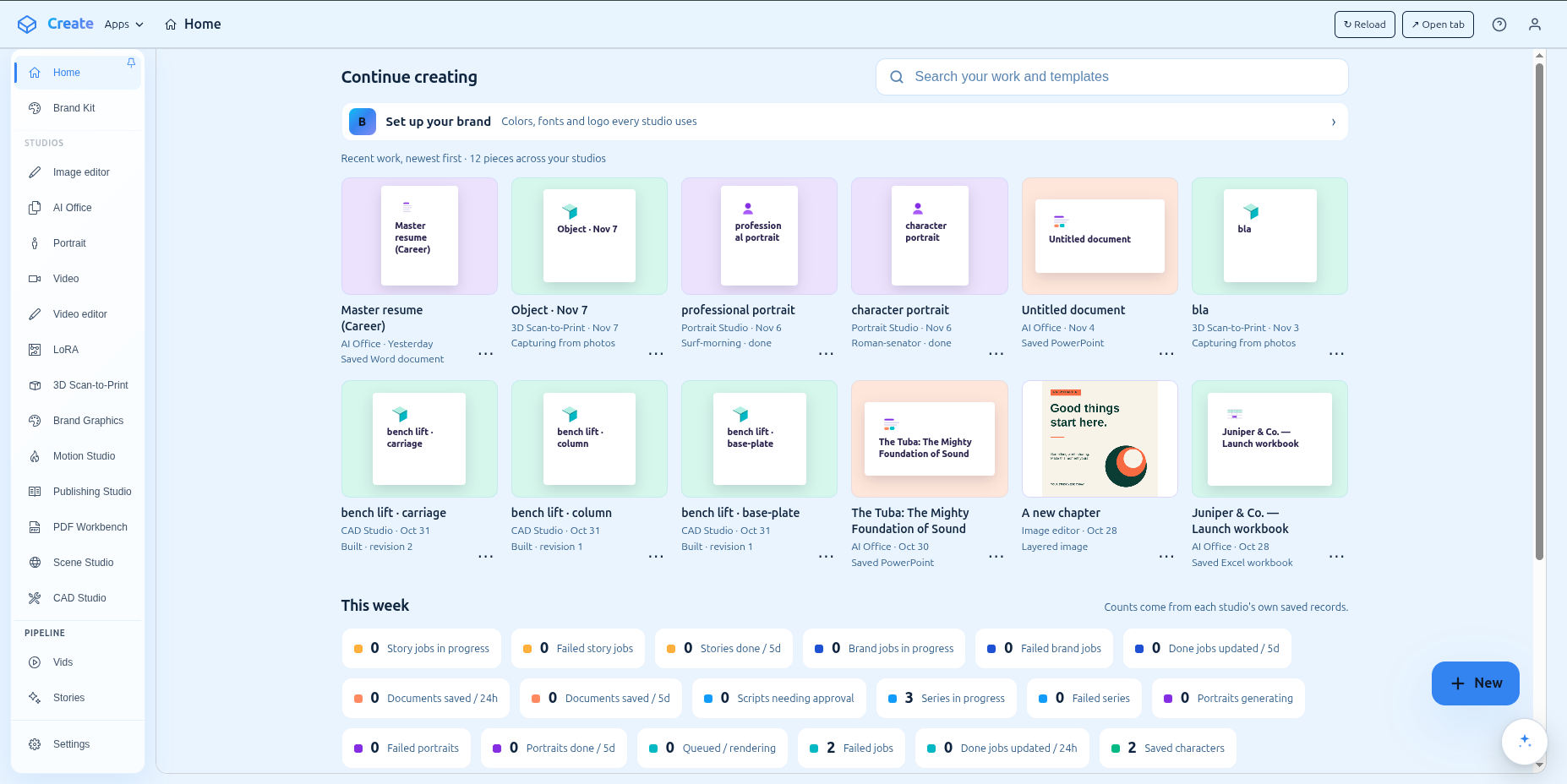
From a résumé to a 3D scene, the work stays editable in the application that owns its format.
Create · studios
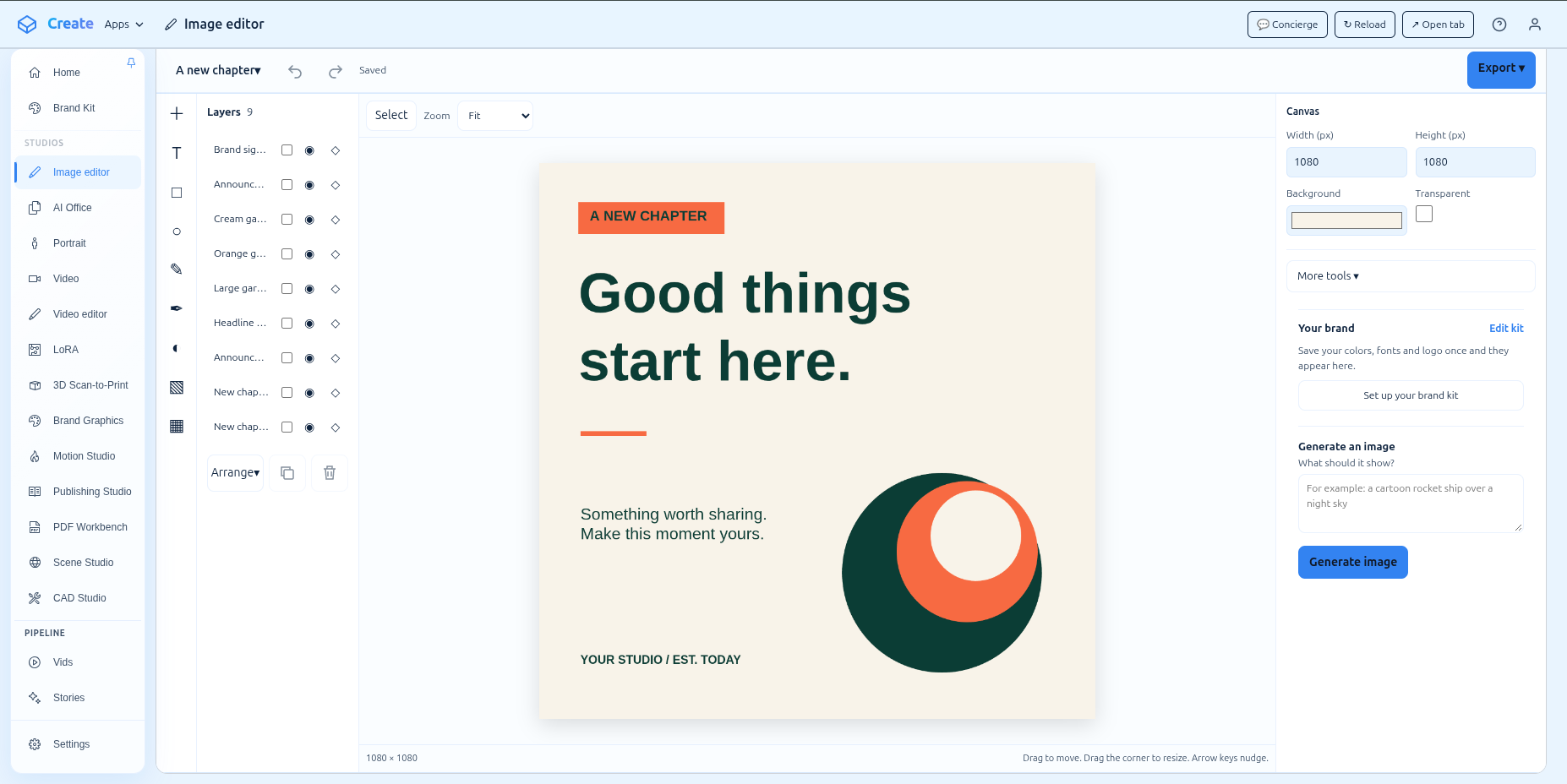
Images, video, publishing, portraits, 3D scenes and CAD each have a studio of their own, and everything you make comes back to one Home, searchable and ready to continue.
Create & work · AI Office
Write documents, build decks and work in spreadsheets. The assistant receives the saved document and its revision and brings the edits you accept back into the same editor.
04Home
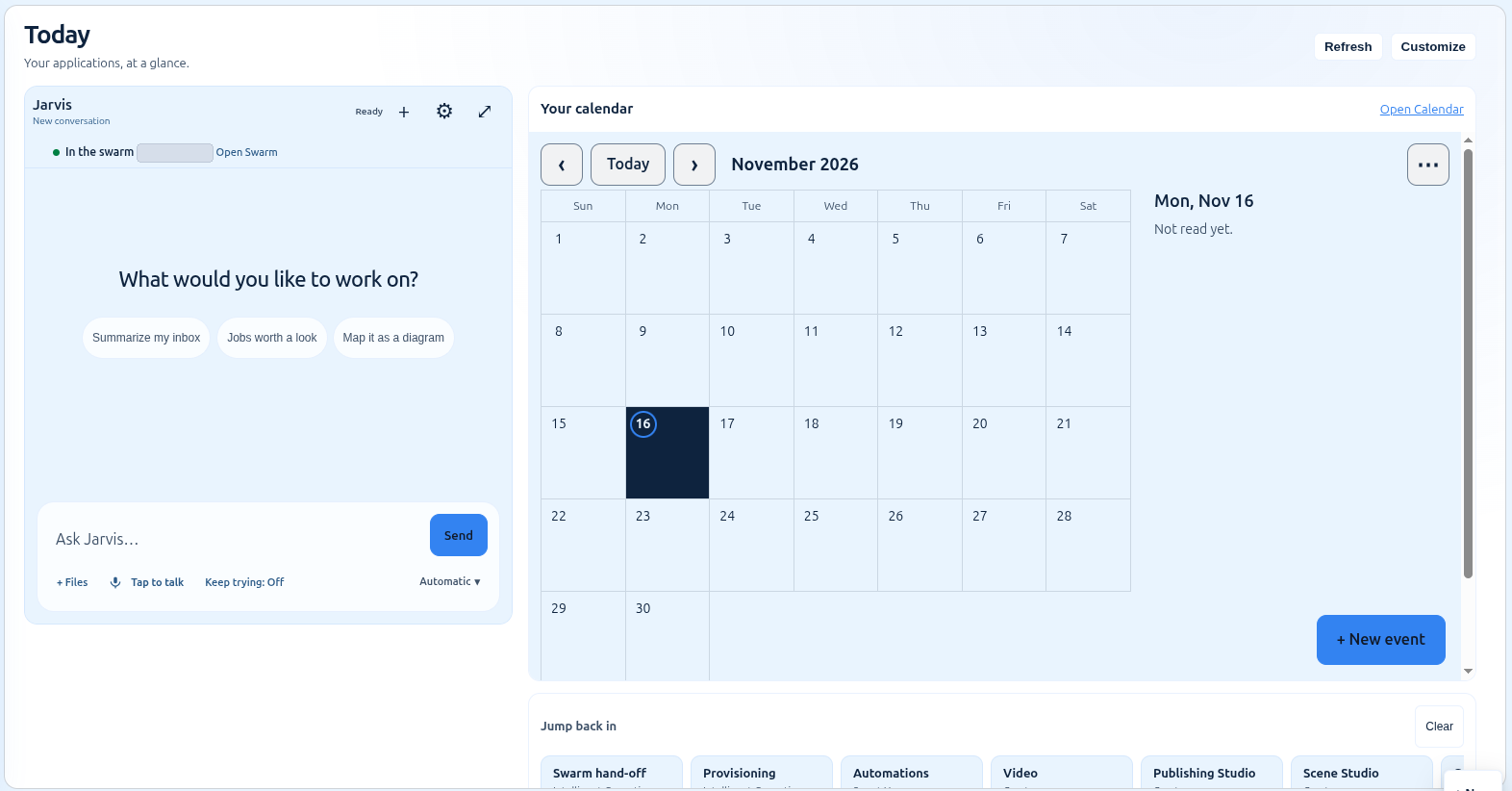
Today with Jarvis and your calendar, Smart Home for the devices in each room, and Marquee for the evening.
Home · Smart Home
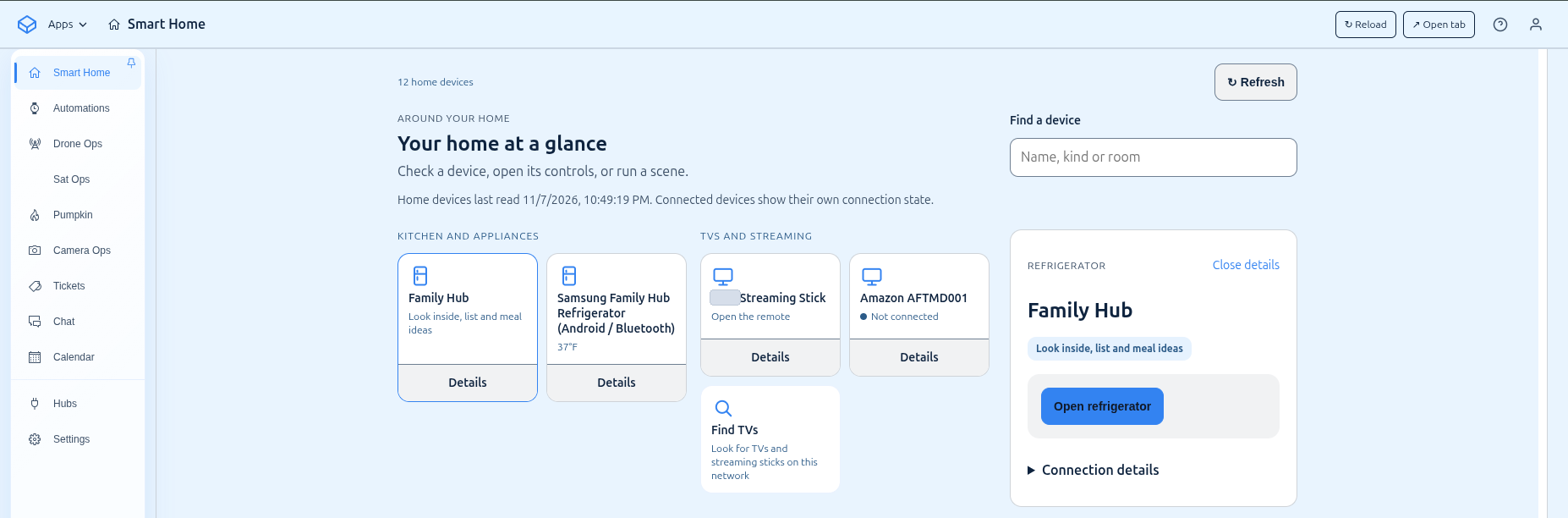
Find a device by name, kind or room, open its controls and see whether it is connected. Schedules sit on the calendar, and a connected computer can find the TVs on its network.
Home · Marquee
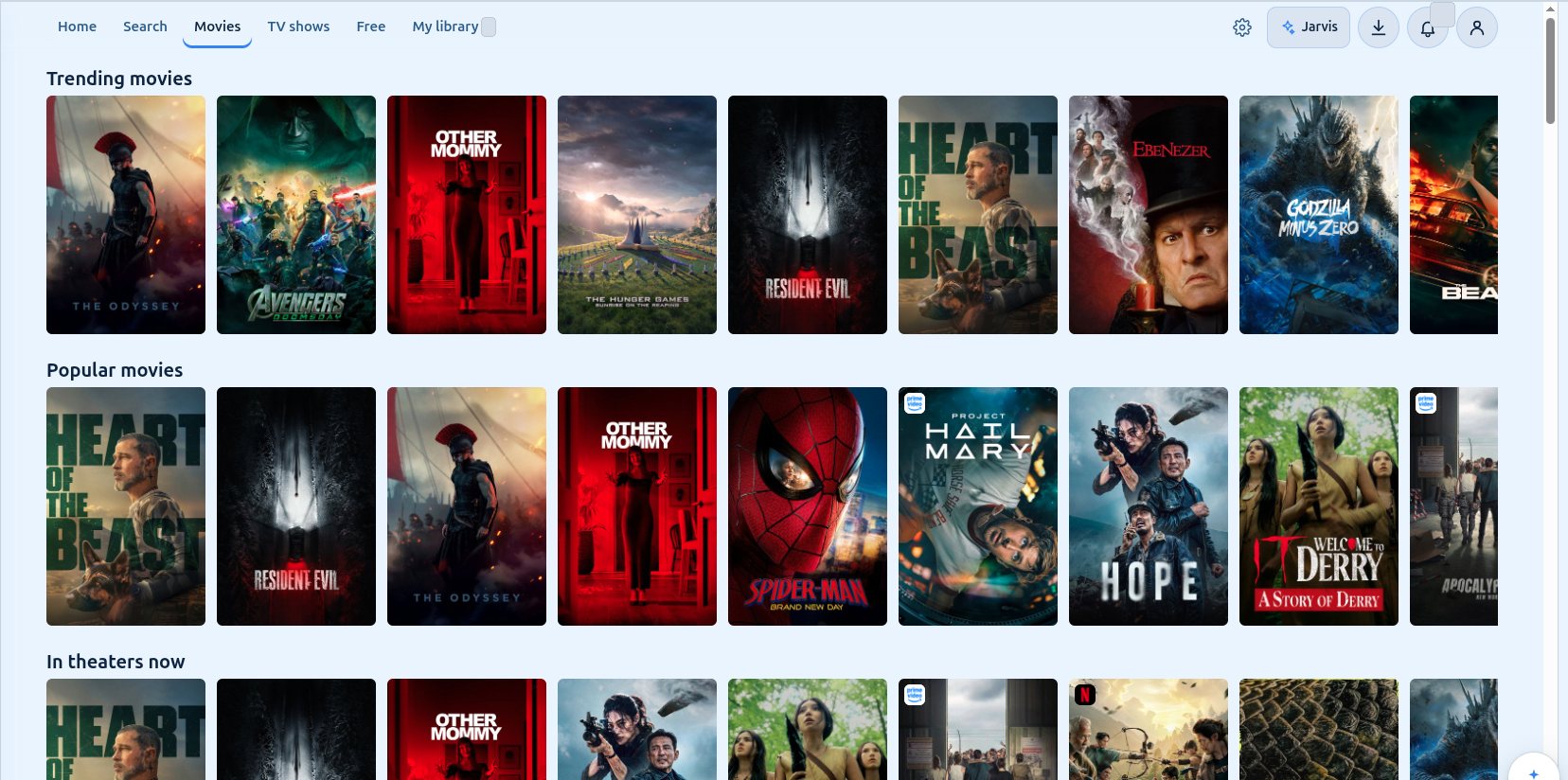
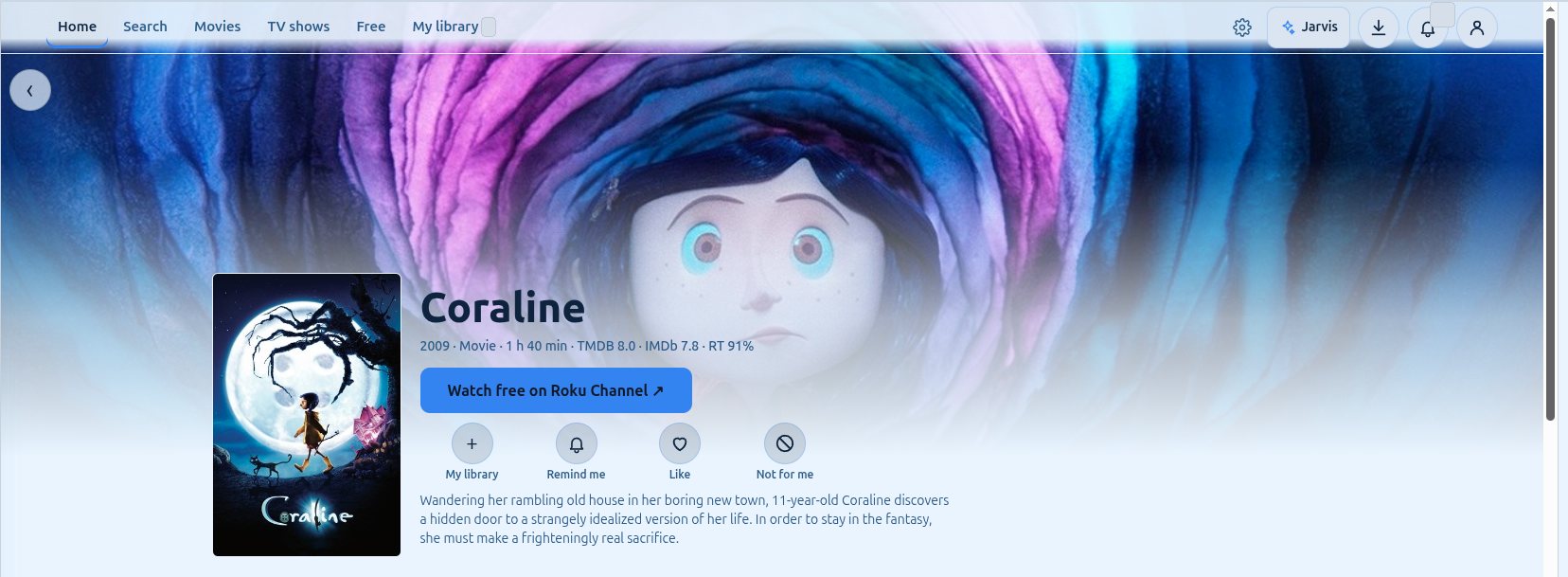
Discover movies and shows, see where each one streams, keep household profiles and libraries, set reminders and ask Jarvis from inside the app. Marquee is an integrated add-on with a look of its own.
Jarvis + application specialists
Jarvis is the conversation that runs through your swarm. It answers from the applications you use, hands a step to the application that owns it, or passes it to an agent on one of your devices. Inside an application, its own Concierge works beside the screen.
Jarvis passes your request to the application that owns the records, and its specialist answers from them.
The Finance analyst, the Class Tutor, the Career concierge and the Operations specialists each work with their application’s tools and permissions.
Supported changes come back to you for approval, and every Jarvis and application-assistant turn is kept as a ticket with its cost.
What a Concierge can read and change depends on the application and your permissions.
Intelligent Operations · monitoring to action
Each stage keeps its own record. Every stage below either names the screen that shows it or says plainly that this page does not show it.
Installations report every minute; one that goes quiet raises an alert of its own.
ShownOverview and SystemsA check fails and its alert fires on the system it belongs to.
ShownRebootRequired firing in SystemsThe alert passes noise reduction and correlation; its evidence is sealed into a packet.
ShownData pipeline and the incident traceThe workflow stops for a person to accept its report.
Shown, waitingAwaiting approval in the traceAn approved script runs through your own Kubernetes connection, after a fresh confirmation.
Not shown hereRecovery is measured before the ticket is updated; a finished report alone is not recovery.
Not shown here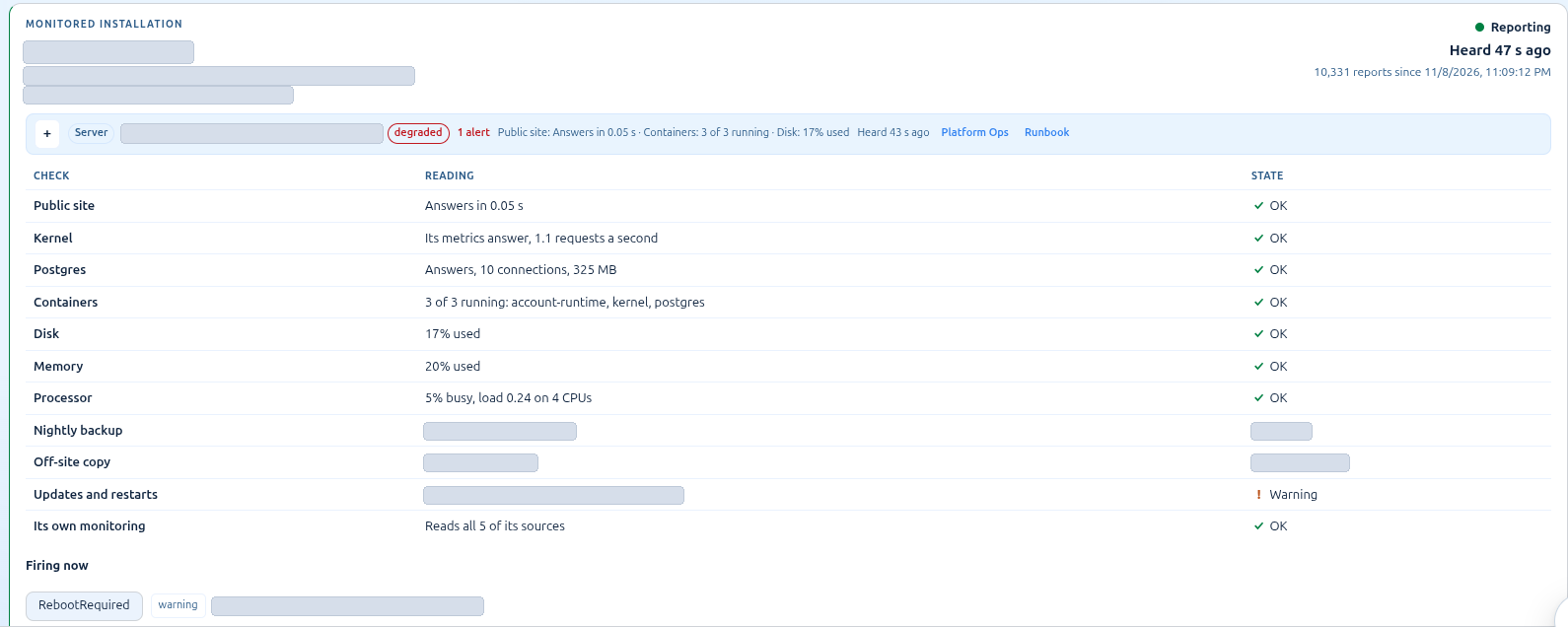
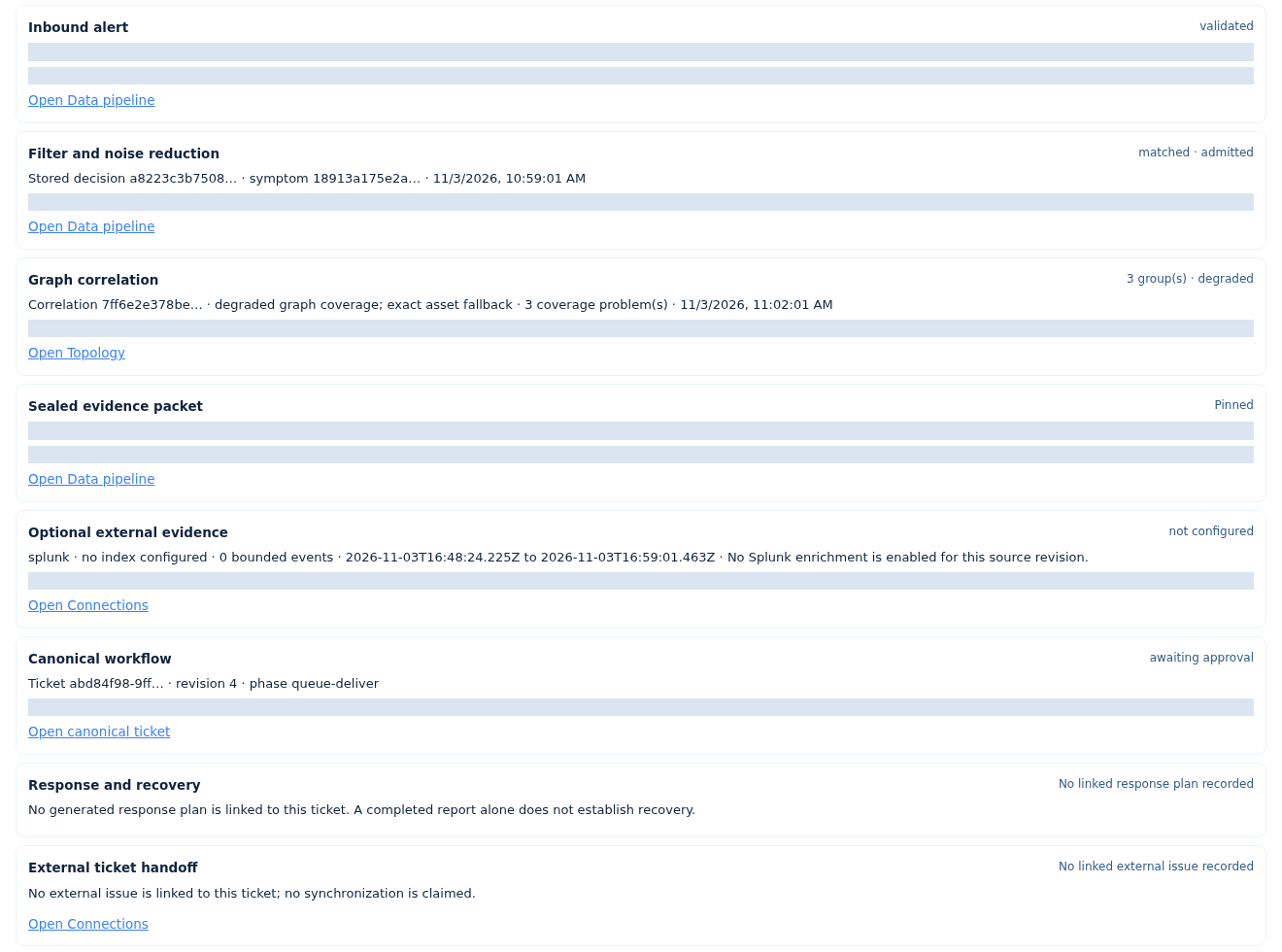
An approval is bound to the exact generated files and one observed target. The approved script runs through your own Kubernetes connection after a fresh confirmation, and recovery is measured before the ticket is updated. This page does not show a completed response or a recovery.
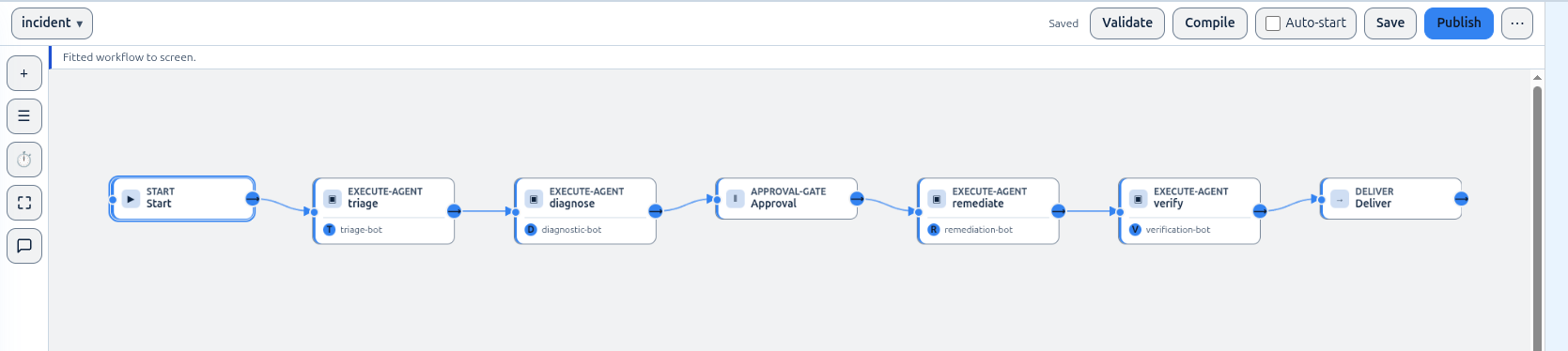
Workflow Studio
Draw the steps on a canvas: agent steps, choices, parallel branches, joins and approval points. Validate it, compile it and publish it as a queue of its own; every run keeps its steps, its branches and its cost.
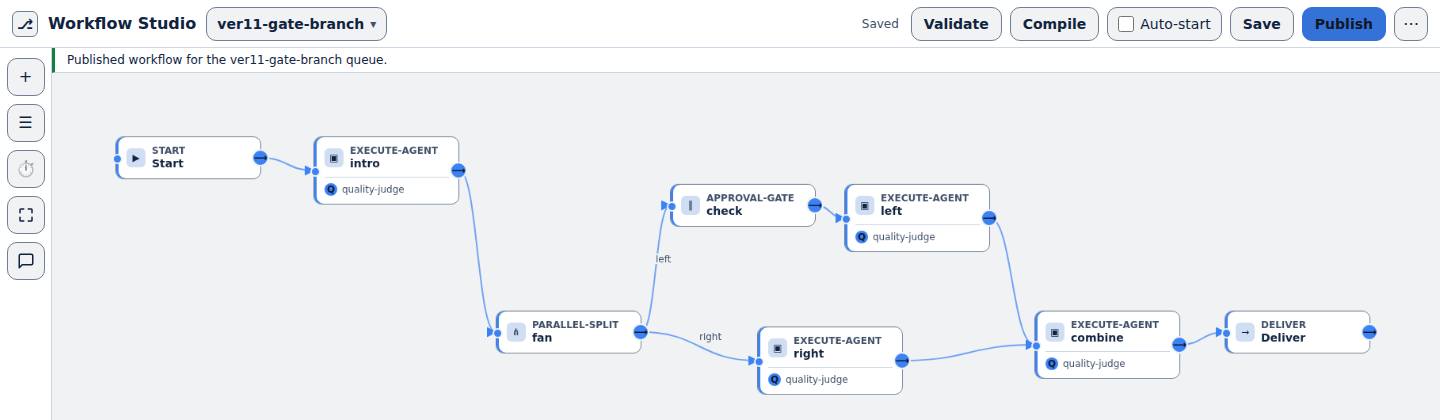
n8n import: planned; it is not in the current release.
Distributed agents · connected devices
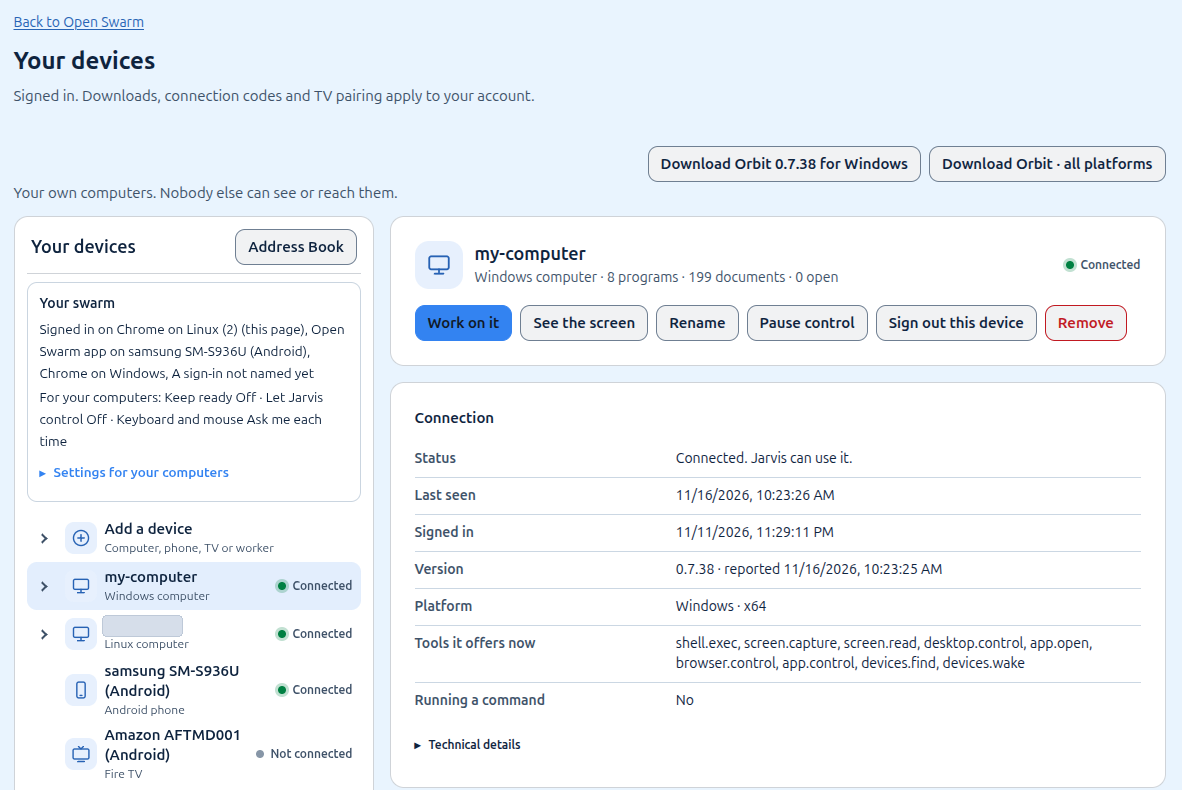
Your swarm is the parent of every device you connect. Sign in from a phone or a browser, enroll a computer with Orbit, and Jarvis can use the tools each device offers, with the permissions you give it.
One device, up close
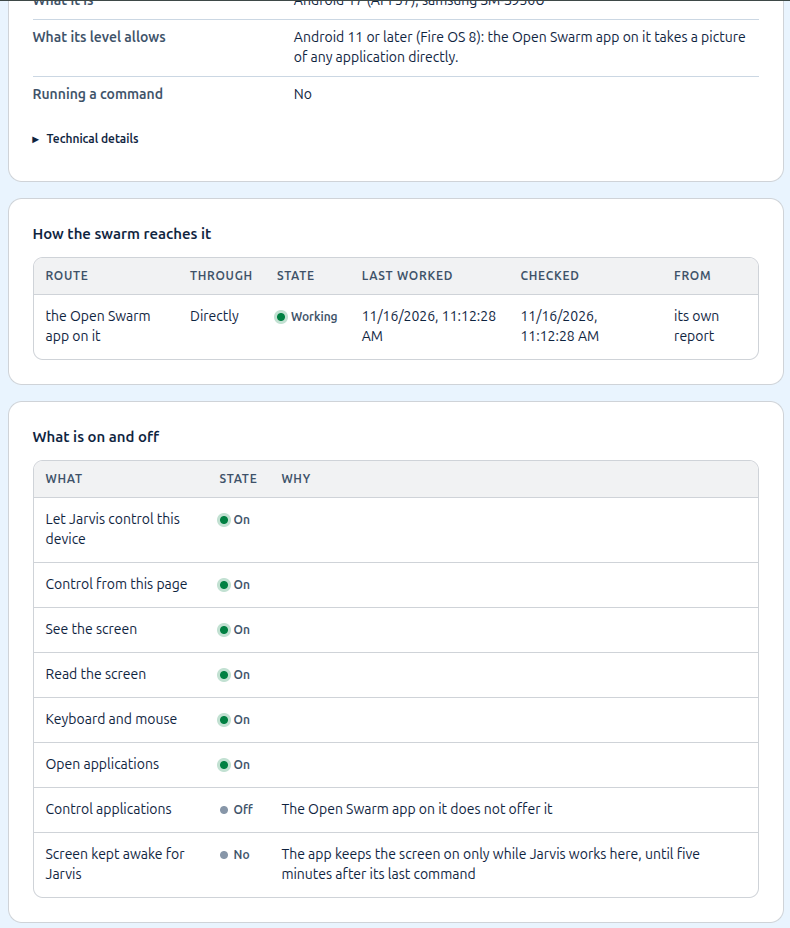
Open a device to see how the swarm reaches it now and whether that route is working, then what Jarvis may do there: control it, see and read the screen, use the keyboard and mouse, open applications. A switch that is off says why.
Chained work we have verified
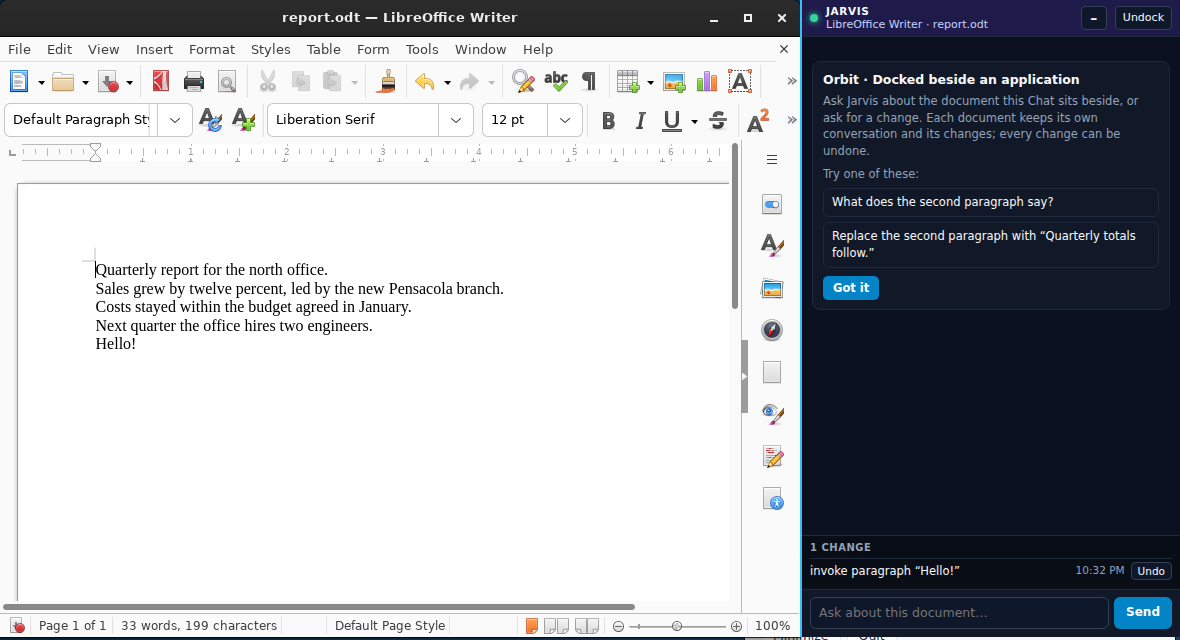
In a recorded desktop test (November 14, Orbit 0.7.25), Jarvis added a paragraph to an open LibreOffice document through a Moon docked beside it. The change appeared in the document and in the Moon’s change history, with Undo.
In integration tests with real Blender and Godot, Jarvis’s Blender actions built, rigged and animated a character and exported it as a glTF file; Godot imported it with both animations and its skeleton.
The Devices page shows each computer’s live connection and the tools it offers Jarvis right now: commands, screen capture and reading, desktop, application and browser control, finding and waking devices.
The whole platform
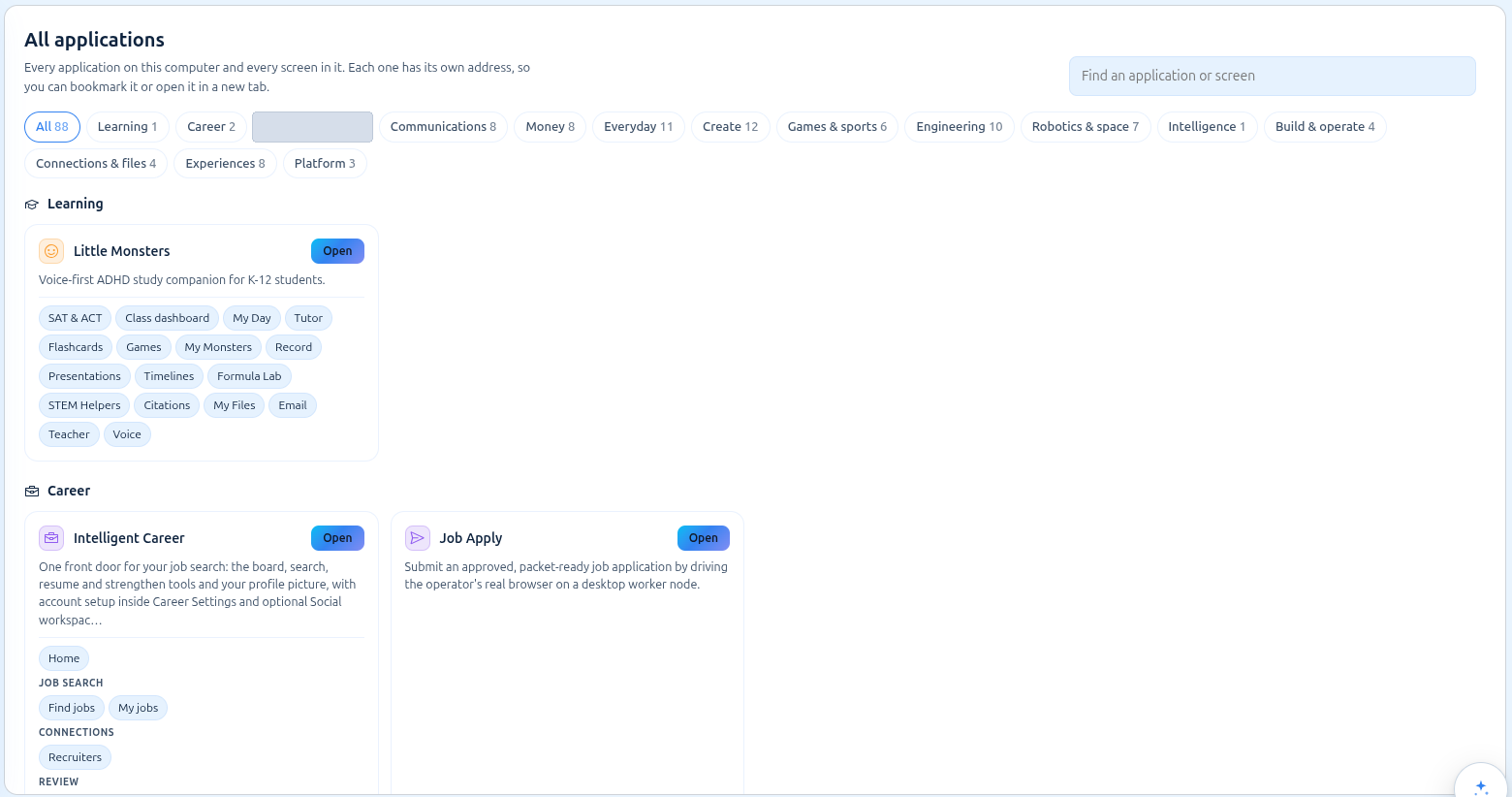
The All applications page lists every application on an installation by area, with each of its screens. Every screen has its own address, so you can bookmark it or open it in a new tab.
Development and customization
Shape the platform where it runs: develop with Jarvis in your own session, give applications their own look, and add applications and connections of your own.
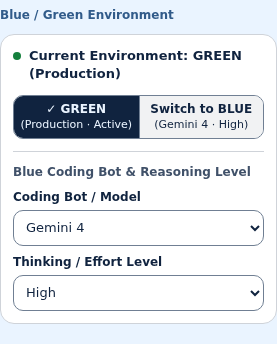
From Jarvis’s header an administrator moves their own session from Green, the production environment, to Blue, a developer session that loads changes as they are made. In Blue, Jarvis works on the source with the coding model you pick: Gemini, Claude, Codex or a local model. Promoting to Green first shows the plan in plain words: what goes, from which pushed commit, and what does not. Everyone else stays on Green.
These captures show the switch and the settings with production selected. Nothing was promoted for them.

Pick a shared theme for the platform, or let an application keep its own design. These four run in the same platform, under the same account.
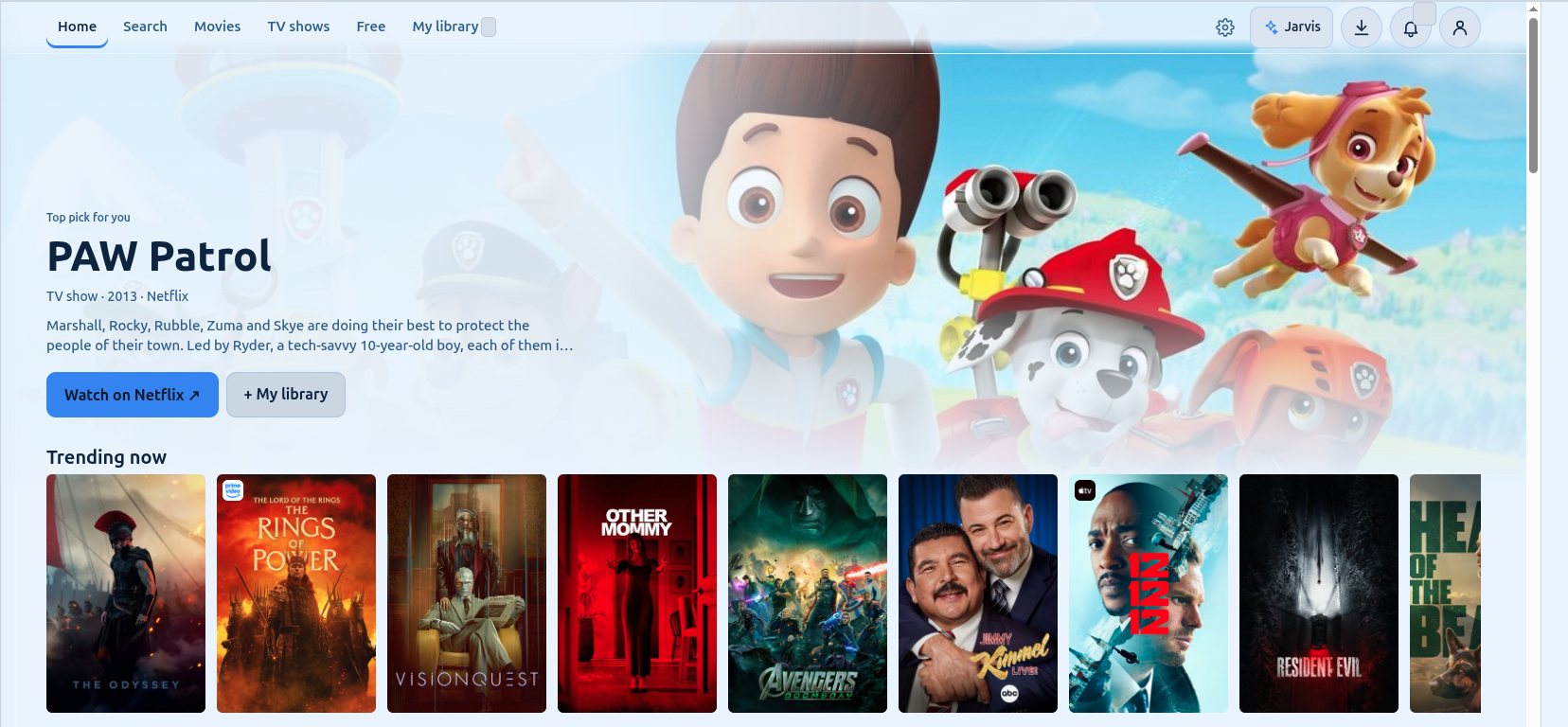
Applications install as packages with their own screens, specialist tools, permissions and connections. Marquee is built that way, as an integrated add-on; a public contributor release in its own repository is planned.
Explore workflows and add-onsPrivate · self-managed · yours
The same platform runs a household, a classroom, a team or an enterprise rollout, on infrastructure you choose.
Run Open Swarm on your own computer or server, in containers, or on Kubernetes in your organization’s cloud. Enroll devices and workers where the work needs to happen.
Ways to run itEach person’s and each tenant’s records are kept apart, credentials live in an encrypted vault, applications run in sandboxed processes, and every connection is one you authorize.
Your data and choicesUse models on your own hardware or provider accounts. Where your administrator allows it, sign in to your own Claude, Codex (with a ChatGPT plan) or Antigravity account in Orbit and use it from your swarm; plan limits apply.
Home, team and enterpriseA running CRM QA installation (single-node Kubernetes with Blue/Green application and database pods, plus its monitoring) used about 2.15 GB of an 8 GB host’s memory in a November 15 snapshot. That is an observation, not a minimum requirement: your applications, workload and AI setup decide what you need.
A model provider or service you connect receives the information you send to it.
Bring it together
Use a hosted workspace or run your own. Connect the services and devices you choose, with the models and permissions that suit your world.